

How to Build a PC and Install Windows
Building your own computer from scratch can seem intimidating, but it is a highly rewarding project that saves money and gives you complete control over your hardware components. This comprehensive guide walks you through every single step of the process, from unboxing components to configuring your operating system. Whether you are creating a high-end gaming system or a reliable home office workstation, this step-by-step tutorial ensures a seamless and successful build experience.
Prepare All PC Components and Essential Tools
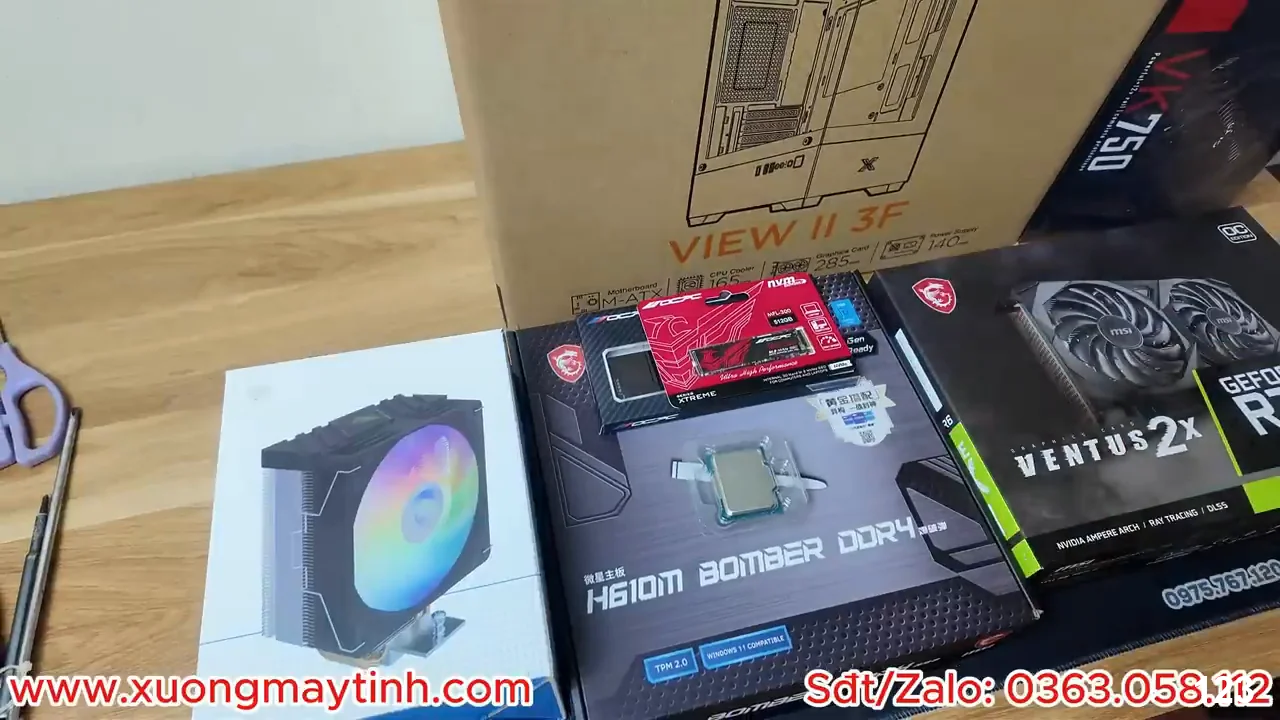
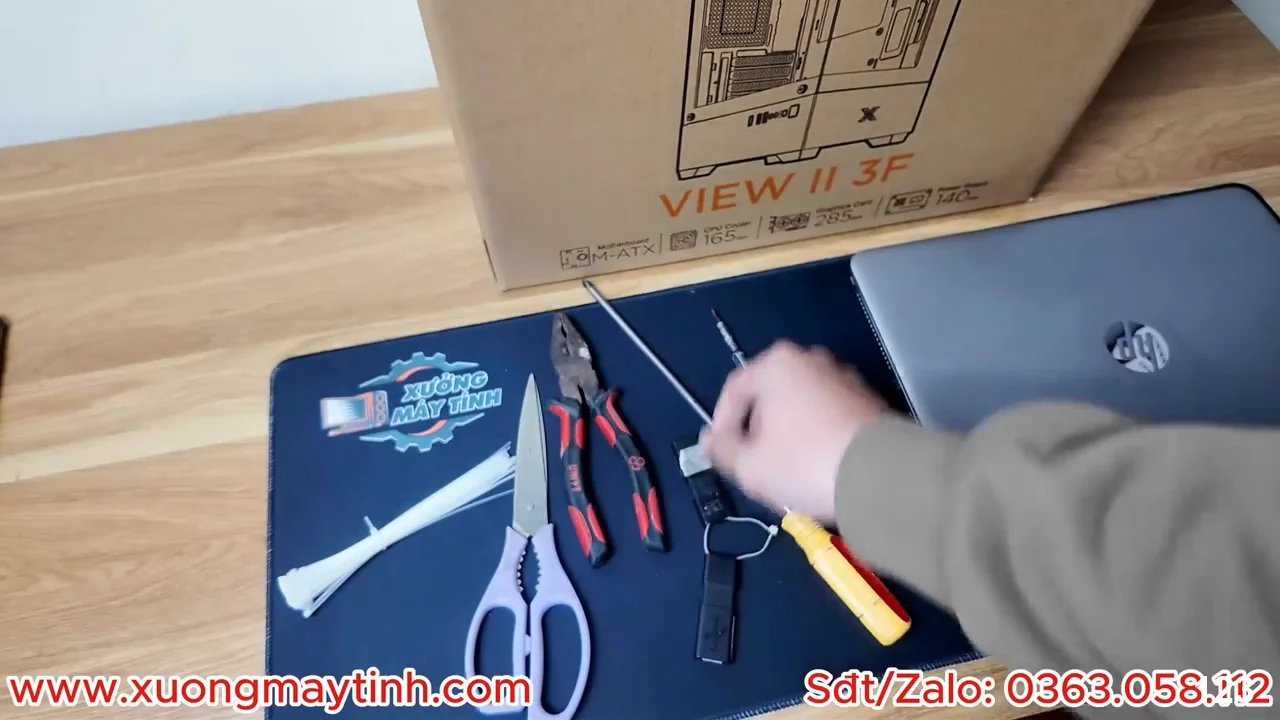
- Before beginning the assembly process, gather all necessary computer components and tools on a clean workspace.
- Ensure you have an anti-static wrist strap, a magnetic Philips screwdriver, and all component boxes within arm’s reach.
- Carefully unbox each item, keeping track of small screws and manuals.
- “Check for physical damage” on all parts before proceeding to assemble anything.
- “Organize all your hardware components” cleanly to streamline the entire setup process.
Install the CPU Onto the Motherboard Socket
- Place the motherboard on top of its anti-static cardboard box for a safe working environment.
- Gently press down and lift the metal load lever on the motherboard CPU socket to open it completely.
- Align the golden triangle indicator on the corner of the processor with the corresponding mark on the socket.
- “Lower the CPU straight down” into the socket without applying any excess pressure to the fragile pins.
- “Secure the metal latch lever” back down firmly under the plastic hook to lock it in place.
Mount the RAM Memory Modules Correctly
- Identify the optimal memory slots on your motherboard by consulting the user manual for dual-channel configuration.
- Open the retaining plastic clips on the sides of the chosen RAM slots before inserting the modules.
- Align the physical notch on the bottom edge of the RAM stick with the ridge inside the slot.
- “Press straight down firmly” on both ends of the memory module simultaneously.
- “Ensure both side clips click” back into position automatically, indicating a fully secured and locked connection.
Install the M.2 NVMe SSD Storage Drive
- Locate the primary high-speed M.2 slot positioned close to the CPU socket on your motherboard.
- Remove the integrated motherboard heatsink cover if your specific model comes equipped with one.
- Insert the M.2 NVMe SSD into the connection interface at a precise 30-degree upward angle.
- “Push down gently” on the drive flat against the mounting standoff screw post.
- “Secure the tiny screw” or engage the toolless latch mechanism to hold the solid-state drive securely.
Attach the CPU Cooler Assembly and Fan Cables
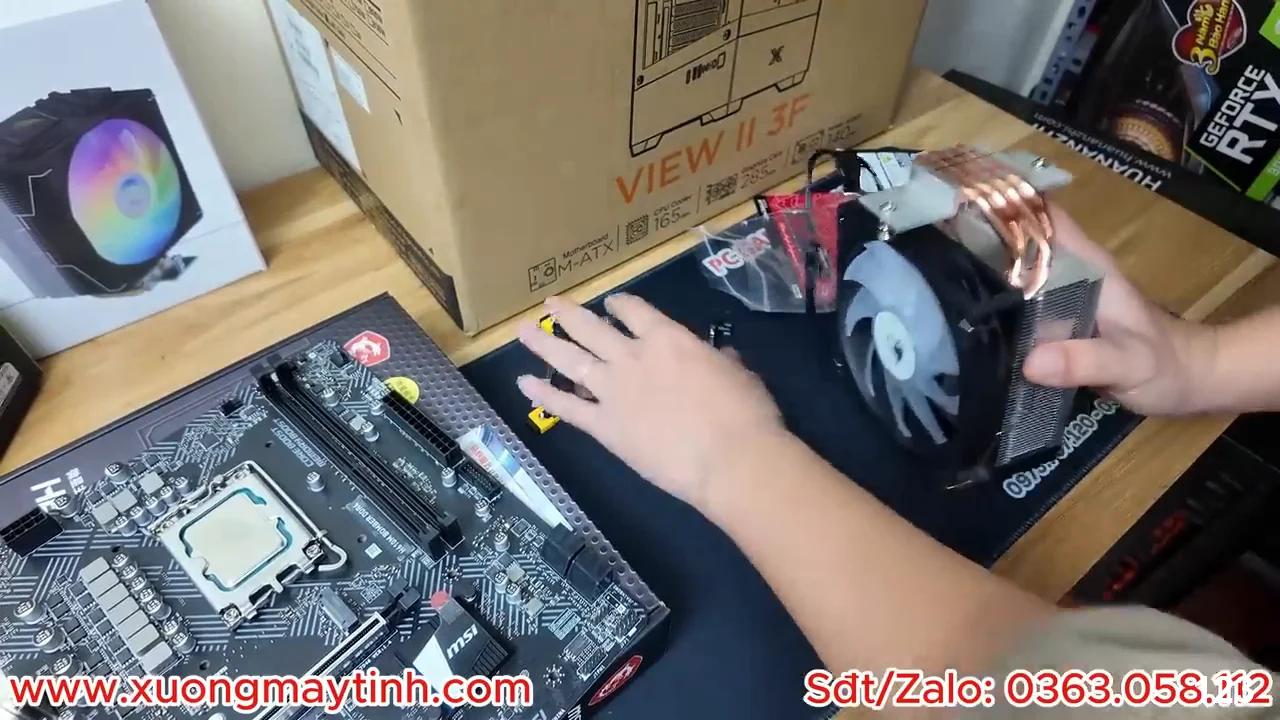
- Apply a small, pea-sized drop of thermal paste to the center of the installed CPU surface.
- Align the CPU cooler mounting bracket or screws with the matching mounting holes on the motherboard.
- “Tighten the screws in an X-pattern” to distribute equal pressure across the processor integrated heat spreader.
- “Connect the fan power cable” directly to the dedicated header labeled CPU_FAN on the motherboard.
- Double check that the cooling fan blades can rotate freely without catching on any surrounding components.
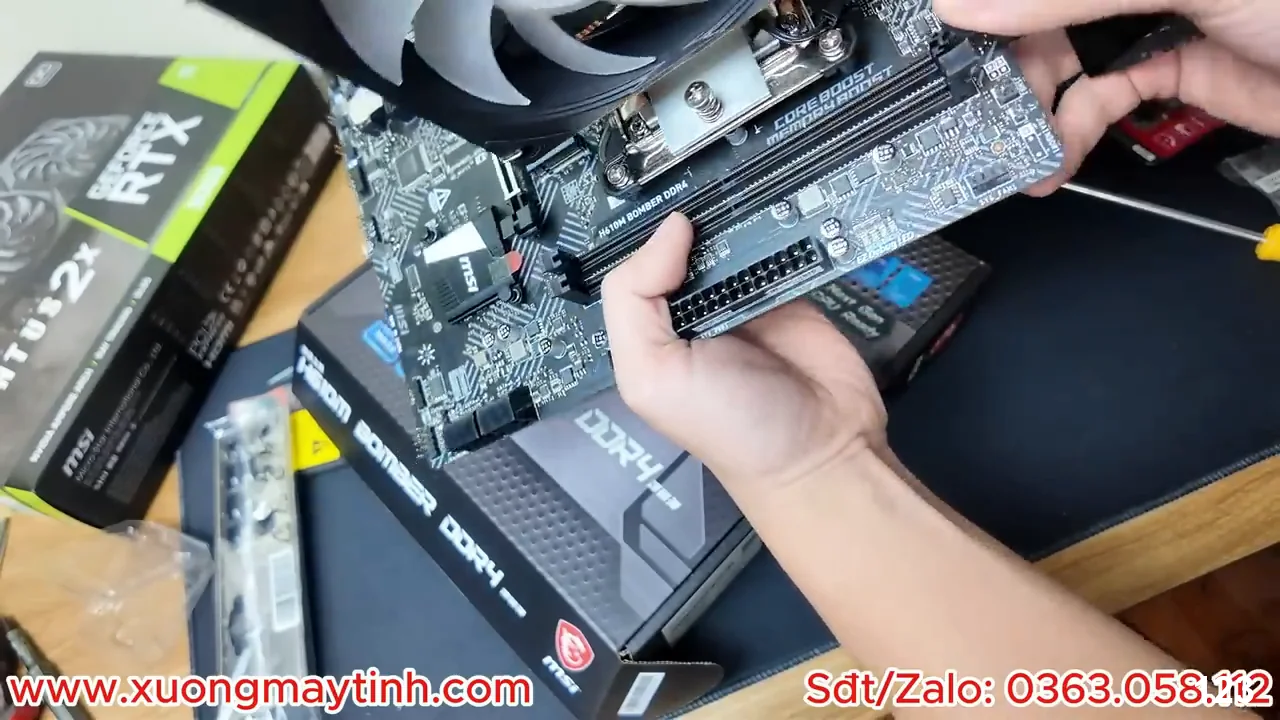
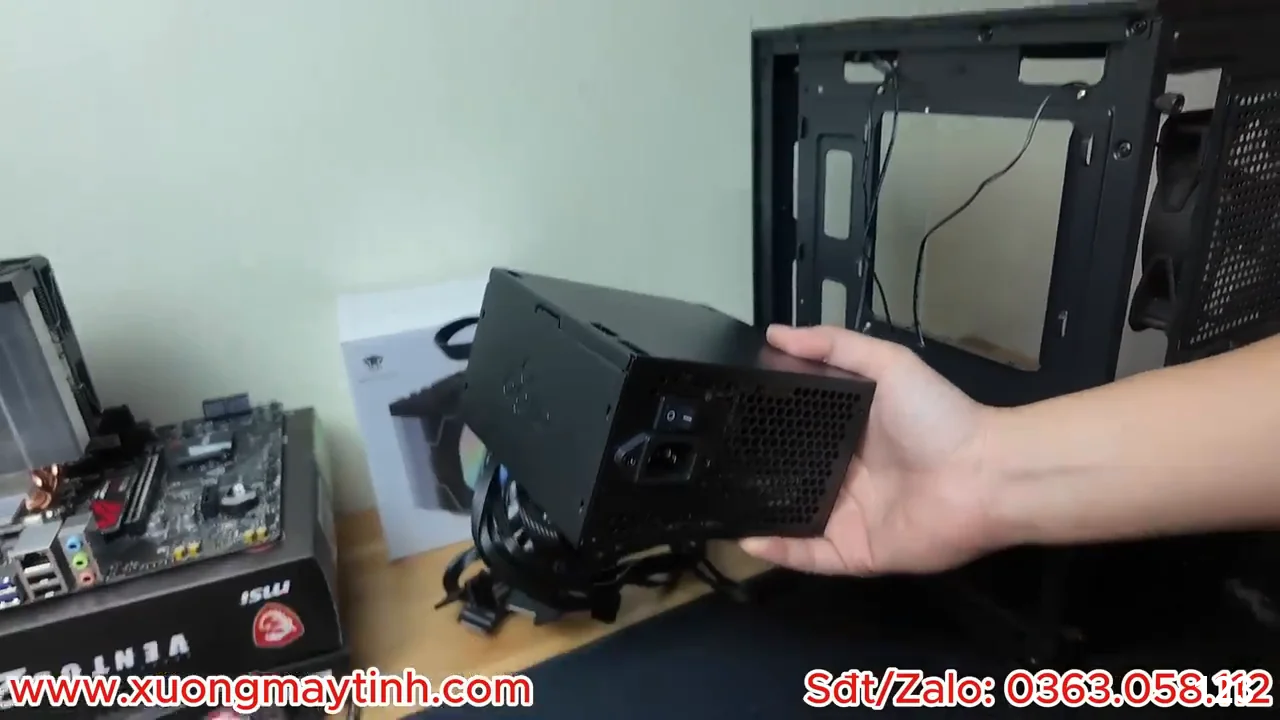
Prepare the Computer Case and Install Power Supply
- Unscrew and remove the tempered glass and solid metal side panels from your computer chassis.
- Slide the power supply unit into its mounting basement bay located at the bottom rear of the case.
- “Orient the intake fan downward” to draw cool air from beneath the computer case ventilation mesh.
- “Tighten all four rear screws” to mount the power supply securely to the metal frame.
- Route the primary power cable bundles through the chassis cutouts to the back area for clean cable management.
Mount the Main Motherboard Inside the Computer Case
- Press the rear I/O shield firmly into the corresponding chassis cutout if it isn’t integrated.
- Check that the brass motherboard standoff screws match the form factor size of your specific board.
- Lower the motherboard gently into the case, angling ports carefully into the rear shield openings.
- “Align all mounting holes” perfectly with the pre-installed metal standoffs inside the case.
- “Tighten the retention screws” snugly without over-torquing them to prevent cracking the printed circuit board.
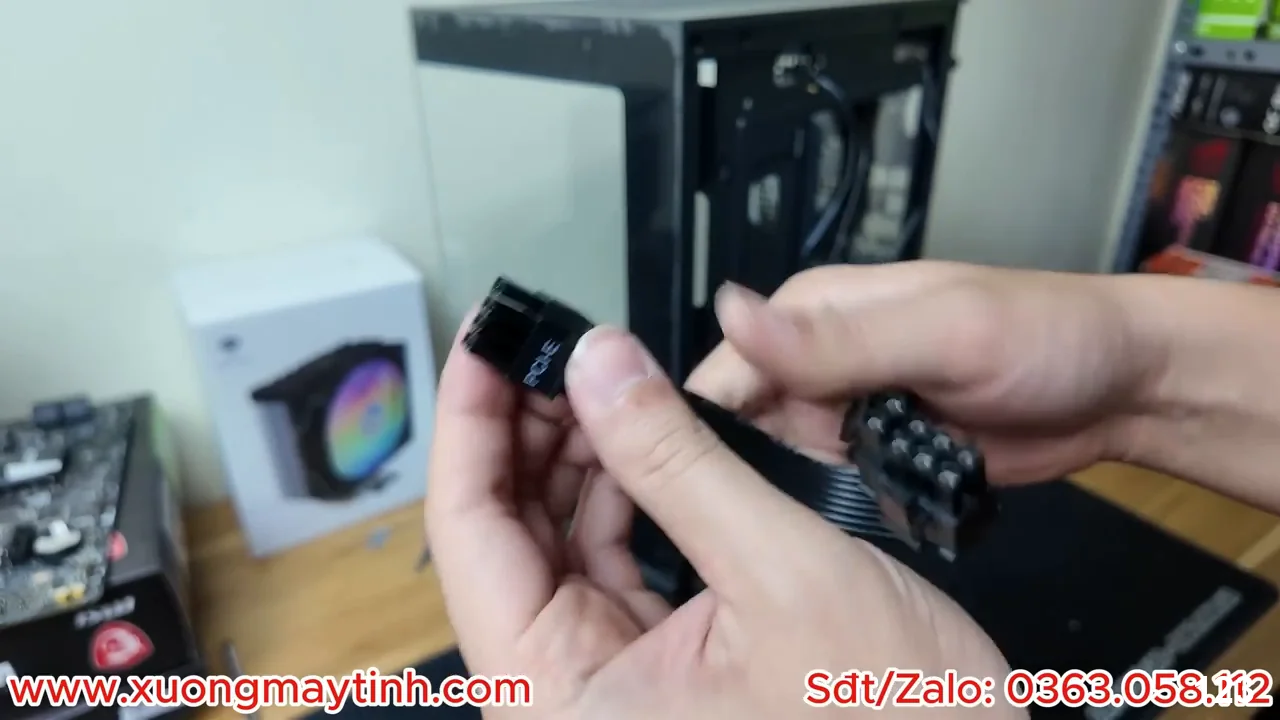
Connect Front Panel Headers and Internal Power Cables
- Locate the primary thick 24-pin power cable bundle and plug it into the main motherboard receiver.
- Connect the 8-pin or 4-pin CPU power cable into the connector located at the top edge of the board.
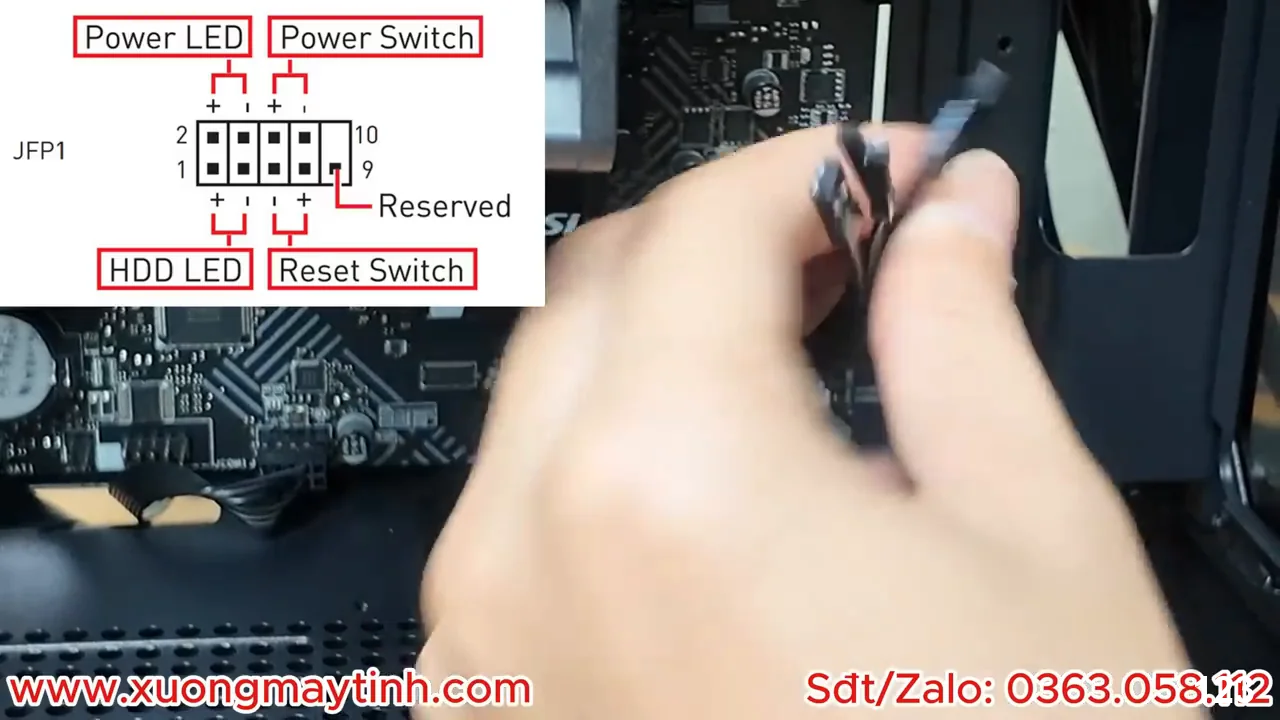
- “Identify front panel connections” like the power switch, reset switch, power LED, and hard drive activity LED.
- “Plug headers onto specific pins” as designated in the motherboard schematic manual diagram.
- Connect the front panel USB 3.0 connector and HD audio cable connectors to their appropriate slots.
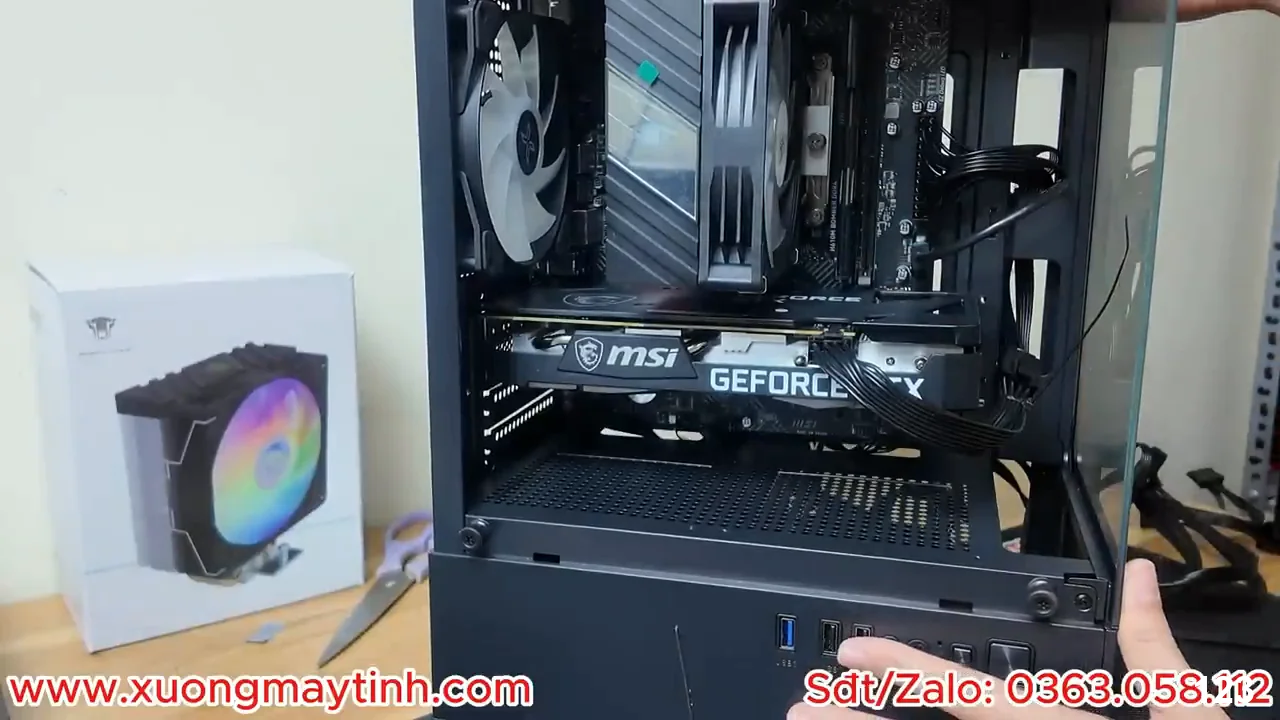
Install the Dedicated Graphics Card Into the PCIe Slot
- Remove the necessary metal PCIe expansion slot covers from the back panel of the computer case.
- Open the locking mechanism plastic latch on the primary top PCIe x16 motherboard slot.
- Align the graphics card connector edge with the open slot and push down evenly on the card.
- “Listen for a click sound” indicating the motherboard slot retention lock has engaged correctly.
- “Secure the metal bracket screws” to the case frame and attach the PCIe power supply cables.
Create a Bootable Windows Installation USB Flash Drive
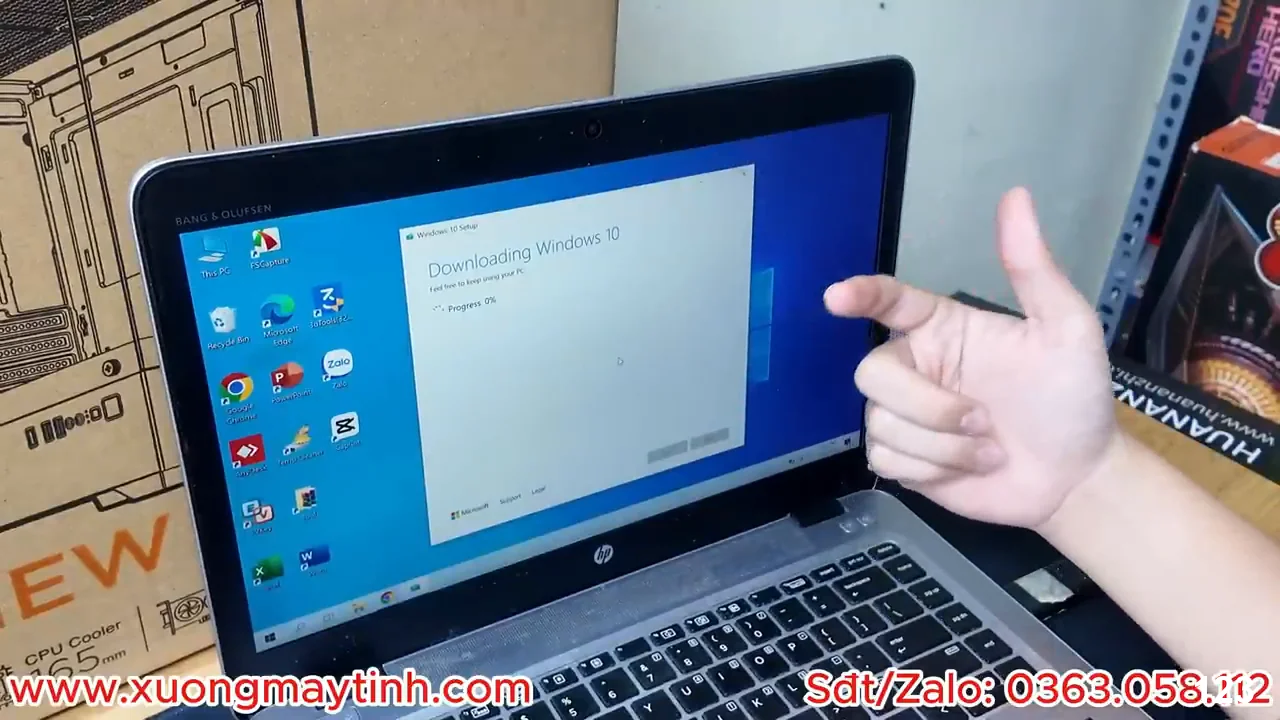
- Connect a clean USB flash drive with at least 8GB capacity into an alternative operational computer.
- Download and run the official Windows Media Creation Tool executable from Microsoft’s website portal.
- Select the option to create installation media and choose your desired architecture and language versions.
- “Select your USB drive” from the provided target directory list within the application installer setup.
- “Wait for the download to finish” and allow the application to complete flashing the setup files.
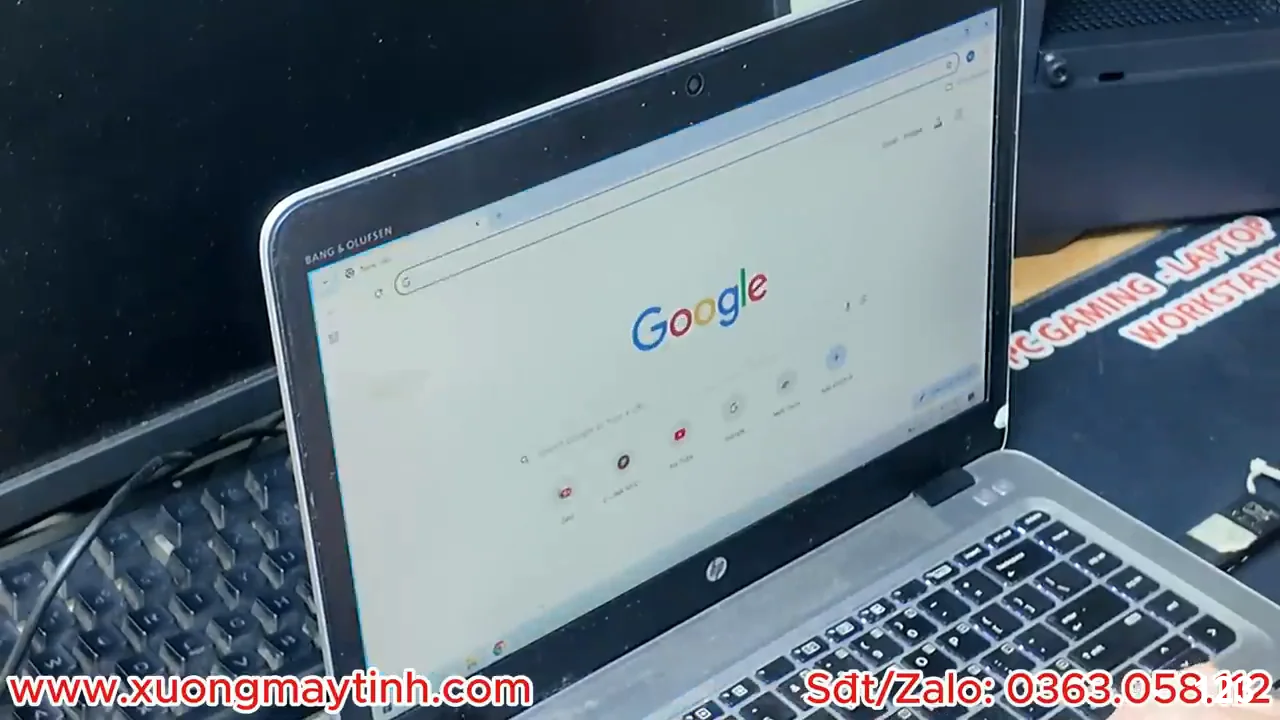
Boot into System BIOS and Set the Drive Priority
- Plug the newly created bootable Windows installation USB drive into a functional rear motherboard port.
- Connect your monitor display cable directly to the graphics card and turn on the system power.
- “Press the Delete key repeatedly” upon startup to enter the motherboard system BIOS management configuration screen.
- “Verify all hardware components” including the CPU temperature, RAM capacity, and storage drives appear correctly.
- Change the system boot priority order to launch the connected USB drive first, then save configurations and exit.
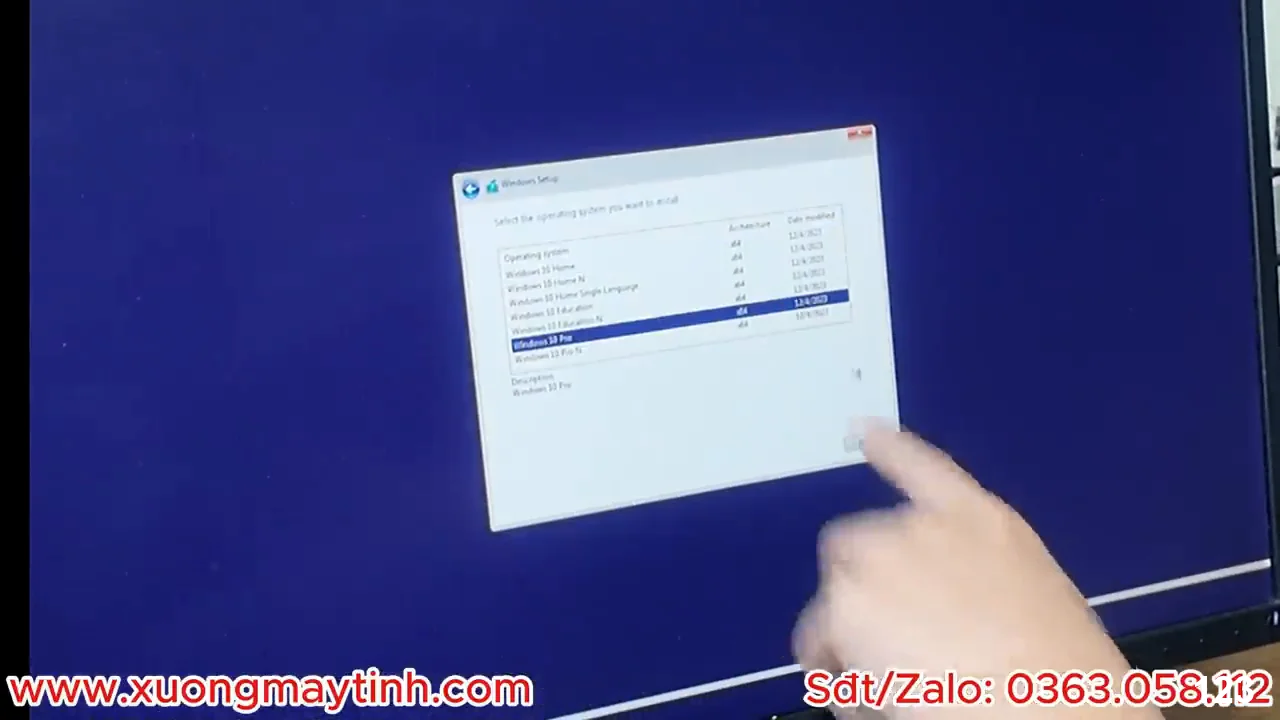
Configure Storage Partitions and Finalize Windows Setup
- Pick your preferred language format, keyboard input layout, and regional settings on the initial Windows screen.
- Click on the install option, choose the custom installation configuration, and view the drive selection list.
- “Select the unallocated drive space” belonging to your newly mounted M.2 NVMe storage drive.
- “Click the new button” to generate a clean system partition and hit next to trigger installation.
- Allow the system files to finish expanding, let the computer restart automatically, and set up local user credentials.
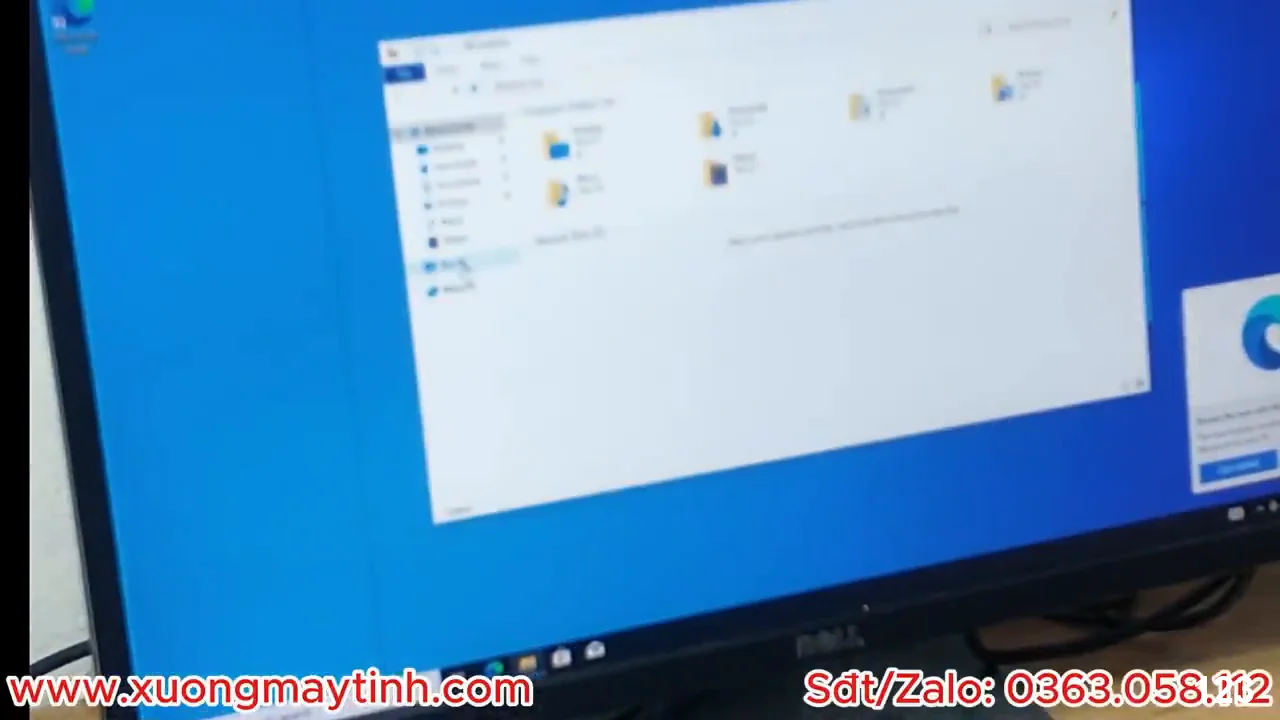
Assembling your own custom desktop PC and setting up the Windows operating system is a straightforward process when following the correct order of operations. For a complete visual walkthrough covering minor troubleshooting tips, watch the full video tutorial on the channel now!
| Summary & Title | Main Content |
|---|---|
| Prepare All PC Components and Essential Tools | Bước chính: Gathering tools and unboxing essential hardware parts Lưu ý: Avoid working on carpeted areas to prevent static discharge |
| Install the CPU Onto the Motherboard Socket | Bước chính: Aligning and locking the processor into the motherboard socket Lưu ý: Never force the CPU lever if alignment feels wrong |
| Mount the RAM Memory Modules Correctly | Bước chính: Inserting RAM modules into specific slots for dual-channel speed Lưu ý: Check motherboard manuals for slot priority when using two sticks |
| Install the M.2 NVMe SSD Storage Drive | Bước chính: Securing the high-speed M.2 solid state drive into its socket Lưu ý: Remember to remove protective plastic film from under heatsinks |
| Attach the CPU Cooler Assembly and Fan Cables | Bước chính: Mounting the heatsink cooler and connecting system fan headers Lưu ý: Ensure correct thermal paste application to prevent overheating issues |
| Prepare the Computer Case and Install Power Supply | Bước chính: Mounting the power supply unit securely inside the case basement Lưu ý: Route necessary cables through internal cutouts before motherboard installation |
| Mount the Main Motherboard Inside the Computer Case | Bước chính: Securing the motherboard onto the interior case metal standoffs Lưu ý: Ensure no loose cables are trapped underneath the motherboard surface |
| Connect Front Panel Headers and Internal Power Cables | Bước chính: Wiring internal chassis switches and essential power distribution cables Lưu ý: Pay close attention to positive and negative polarities on LEDs |
| Install the Dedicated Graphics Card Into the PCIe Slot | Bước chính: Mounting the graphics card and attaching PCIe power source lines Lưu ý: Always use the top PCIe slot for optimal performance bandwidth |
| Create a Bootable Windows Installation USB Flash Drive | Bước chính: Flashing Windows installation media files onto an external flash drive Lưu ý: Creating this media clears all pre-existing files on the flash drive |
| Boot into System BIOS and Set the Drive Priority | Bước chính: Verifying internal system components and adjusting the primary boot order Lưu ý: Connect the display cable directly to the graphics card, not motherboard |
| Configure Storage Partitions and Finalize Windows Setup | Bước chính: Selecting the destination storage partition and completing initial user configuration Lưu ý: Unplug the setup USB drive during the initial automated system restart |
Frequently Asked Questions (FAQ)
What tools do I need to prepare before starting a PC build?
You primarily need a magnetic Philips head screwdriver to secure components and small screws. An anti-static wrist strap or grounding mat is also highly recommended to prevent static electricity from damaging sensitive electronics.
Which step is the most critical during the entire computer assembly?
Installing the CPU is the most critical step because the motherboard socket pins are extremely fragile and easily bent. Ensure perfect alignment by checking the triangle indicator markings before locking the lever down.
How long does it usually take to fully assemble a PC and install the OS?
For beginners, the entire hardware assembly process usually takes around 2 to 3 hours. Setting up the BIOS configuration and installing the Windows operating system takes an additional 30 to 45 minutes.