

How to Install AnyDesk on MacBook Tutorial
Setting up remote desktop software is essential for seamless remote work and tech support. This comprehensive guide will walk you through the entire process of downloading, installing, and configuring AnyDesk on a modern MacBook. By following these steps, any Mac user will be able to securely control computers or share their screen remotely.
Step 1: Access AnyDesk Official Website
- Before initiating any installation, you must acquire the official application package safely.
- Launch your preferred web browser on your Mac and type the official AnyDesk URL into the navigation bar.
- Always ensure you use the official source to avoid compromised malware versions.
- Click on the platform selection tab and make sure “macOS” is highlighted as your operating system.
Step 2: Download the macOS Installer
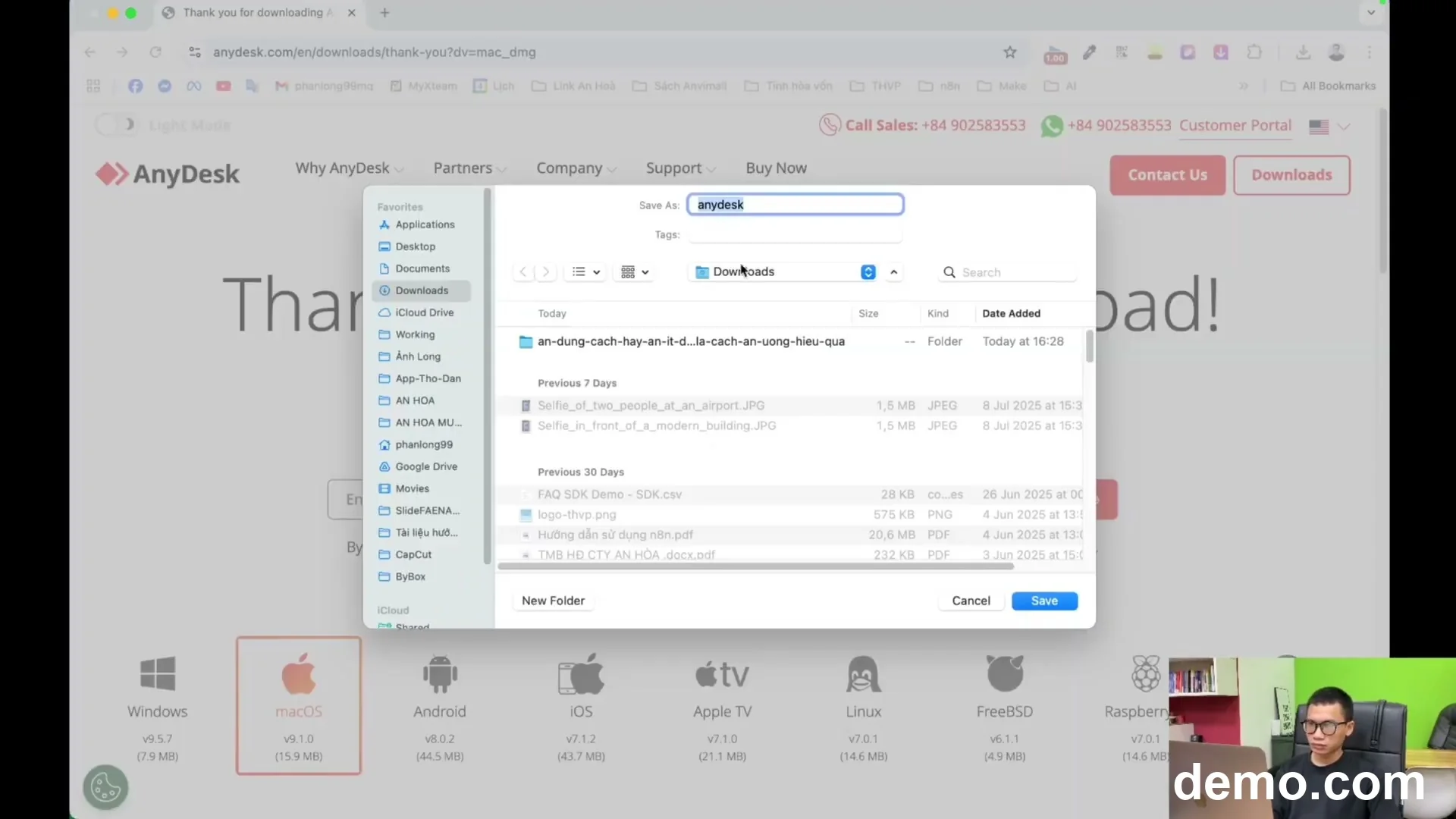
- Once on the correct page, look for the primary download call-to-action trigger.
- Click the green “Download Now” button optimized specifically for Apple devices.
- A prompt may ask to allow downloads on this website, click “Allow” to continue.
- Monitor the download progress bar and wait for the official “AnyDesk.dmg” package to finish downloading completely to your Mac.
Step 3: Open DMG File and Install
- Locate the completed package inside your browser downloads history or local folder storage.
- Double-click the “AnyDesk.dmg” file to unpack and mount the disk image safely.
- A window will display demonstrating the classic application deployment workflow.
- Simply drag the official “AnyDesk icon” over and drop it directly onto the “Applications folder” shortcut icon.
Step 4: Launch AnyDesk Application
- Open your native macOS “Launchpad” or use Finder to access your Applications storage directory.
- Locate the newly added application and double-click its branding icon to initiate launching.
- A security alert will populate indicating this tool was obtained from an external internet space.
- Click “Open” on the prompt confirm button to grant permission for initial program startup.
Step 5: Configure System Permissions
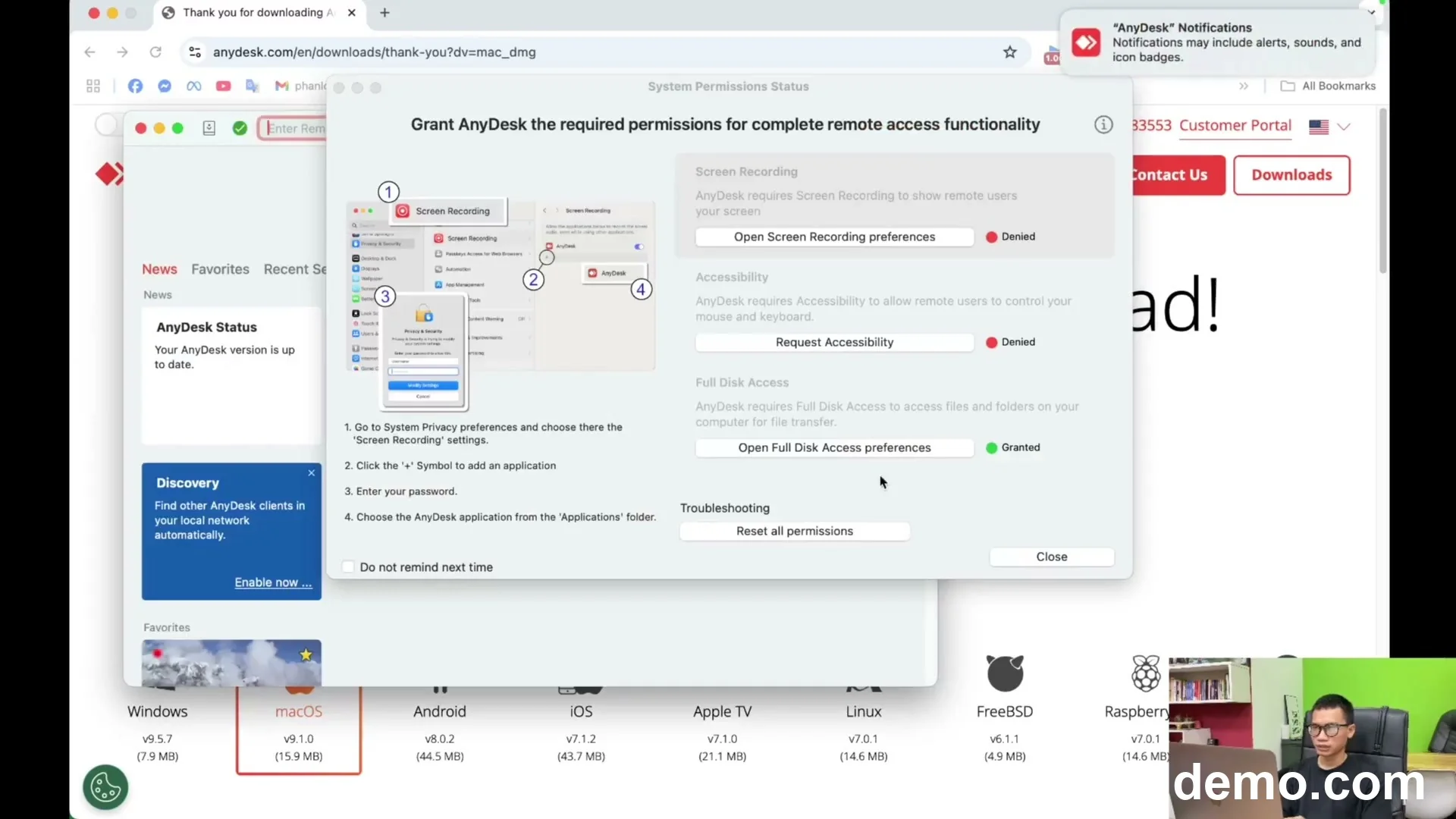
- Modern security protocols require explicit validation before software can transmit screen data.
- A notice will show inside the dashboard asking for essential infrastructure control accessibility privileges.
- Select the option labeled “Open System Settings” within the interactive warning banner.
- This automatically opens your system preferences right to the specific security management modules.
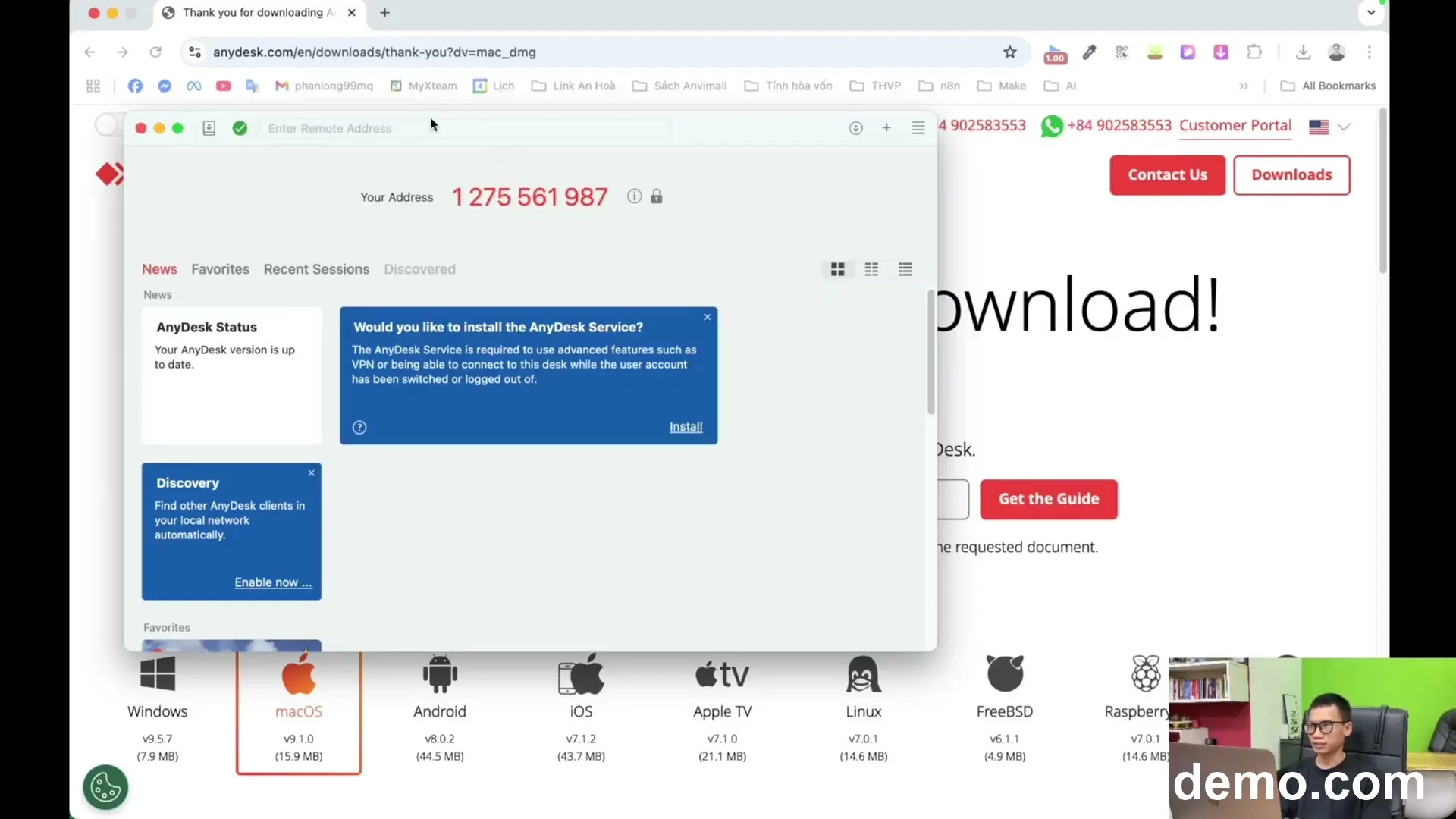
Step 6: Enable Screen Recording Access
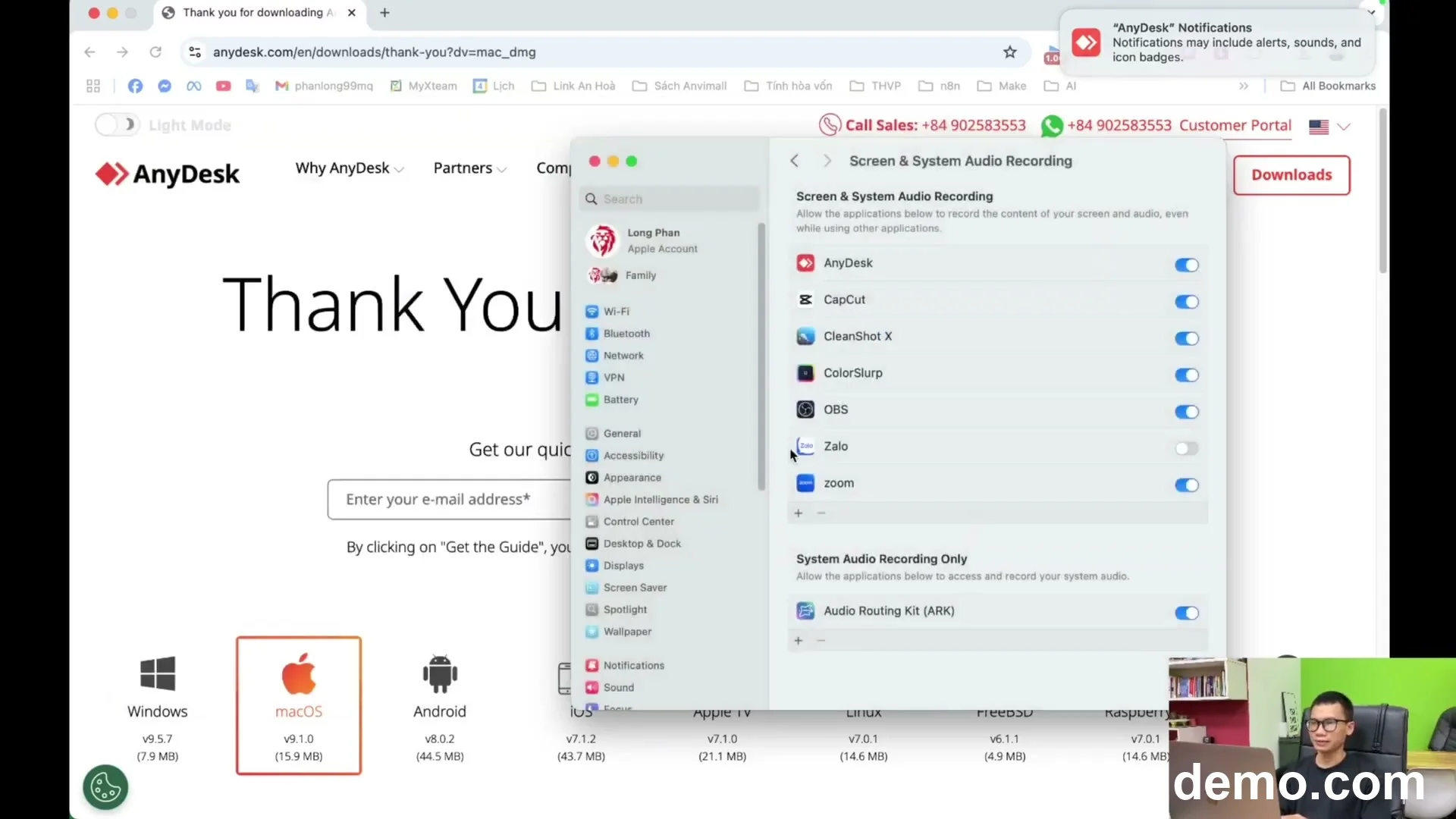
- Scroll down the configuration list and select the “Screen Recording” privacy category column.
- Look for the application in the listing menu and click the toggle switch next to it to “ON” status.
- When prompted, authenticate using your “Mac Administrator Password” or Touch ID signature.
- Note: You might need to repeat this identical workflow pattern for the “Accessibility” submenu module.
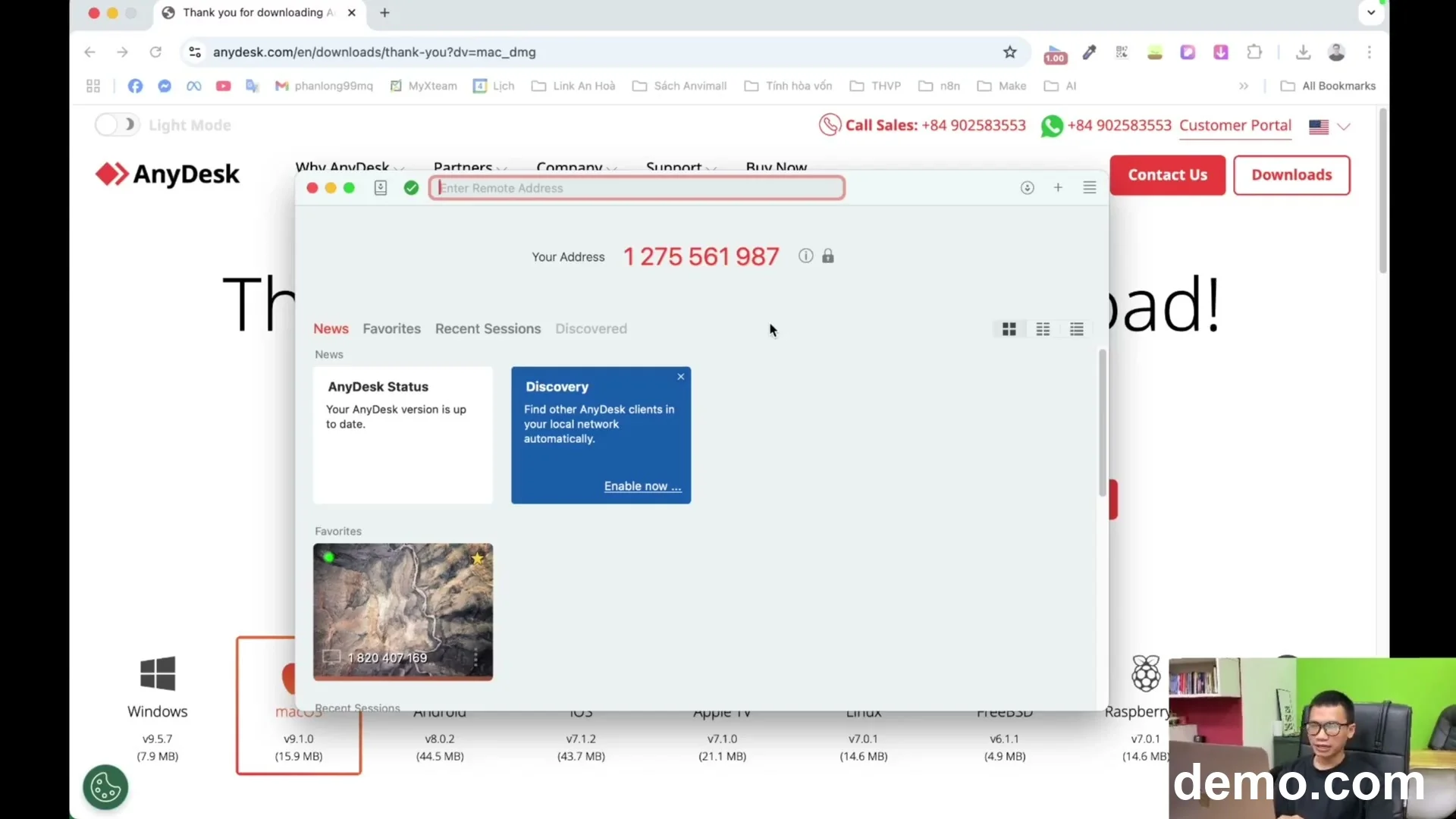
Step 7: Verify Connection Status
- Navigate back to the primary software workplace window to verify that errors are resolved.
- Look closely at the top left sector for a set of numbers labeled “This Desk” or address space.
- Your unique “9-digit address” should now be visible without any warning exclamation indicators.
- Share this clean address code safely with trusted partners to initiate remote operational assistance sessions.
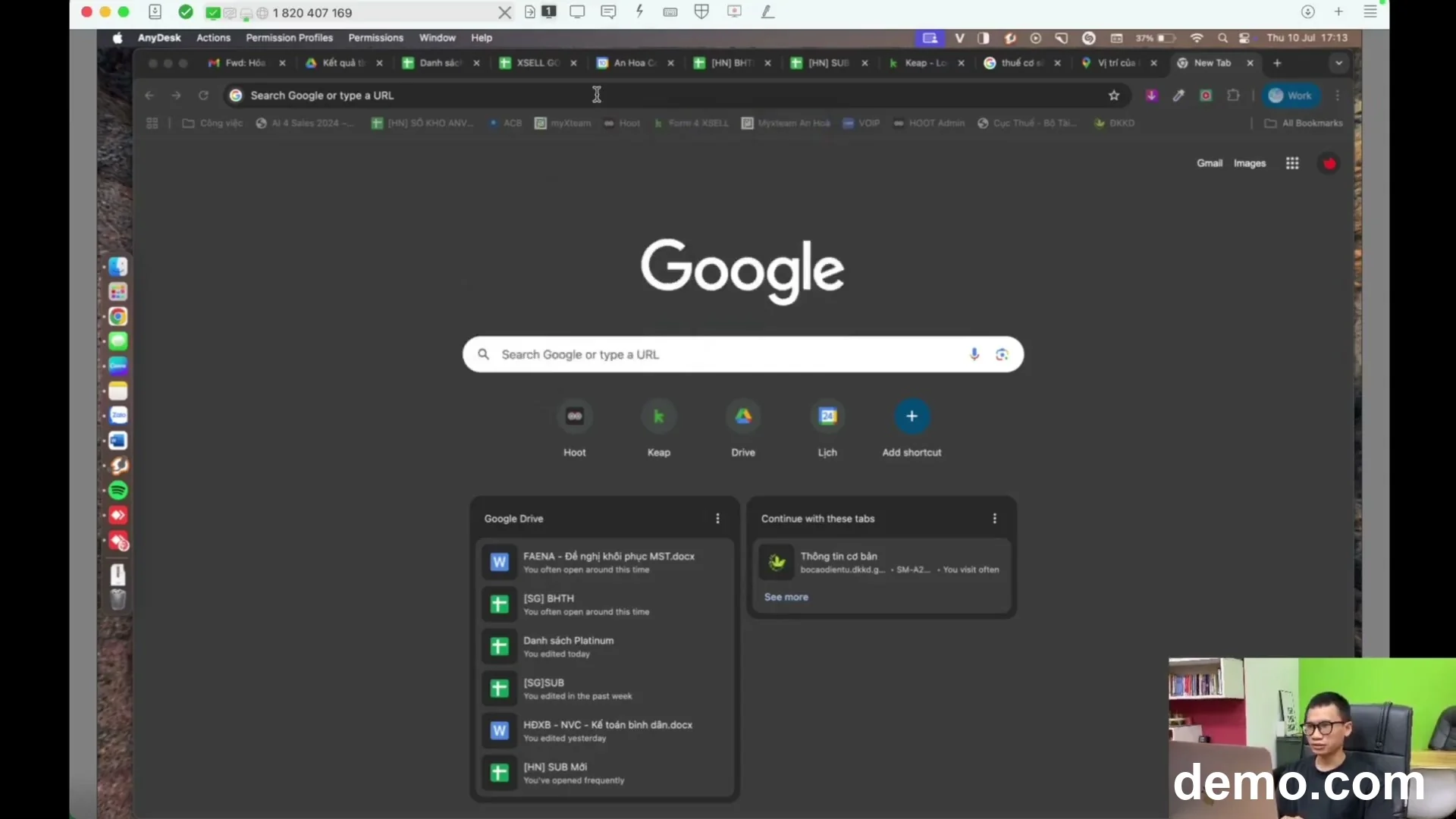
Installing AnyDesk on your Mac is an easy process that involves downloading the installer, copying it to applications, and enabling macOS privacy permissions. Watch the full video tutorial for an interactive walk-through to see exactly where to click and get started!
| Tóm tắt & tiêu đề | Nội dung chính |
|---|---|
| Step 1: Access AnyDesk Official Website | Main Action: Navigate to the official AnyDesk portal Precaution: Avoid third-party mirror download links |
| Step 2: Download the macOS Installer | File Format: .dmg installer package Destination: Local Downloads directory |
| Step 3: Open DMG File and Install | Installation Type: Drag-and-drop deployment Target Directory: System Applications folder |
| Step 4: Launch AnyDesk Application | Security Step: Confirm system prompt for web apps Result: Main interface opens successfully |
| Step 5: Configure System Permissions | Required Panel: Privacy & Security configuration Goal: Grant control permission rights |
| Step 6: Enable Screen Recording Access | Crucial Toggle: Screen Recording and Accessibility Auth Needed: Admin user profile credentials |
| Step 7: Verify Connection Status | Ready Indicator: 9-digit ID displays normally Status: Fully operational remote workspace |
Frequently Asked Questions (FAQ)
What do I need to prepare before starting?
You only need a MacBook connected to a stable internet connection and your Mac administrator password to approve system permission changes.
Which step is the most important?
Enabling Screen Recording and Accessibility permissions under Privacy & Security settings is critical. Without this, remote users can connect but will see a blank screen or cannot control anything.
How long does it take to complete?
The entire process is quick and straightforward, taking approximately 3 to 5 minutes from downloading to your first remote desktop connection.