
Đăng bởi
Do Huy
13/05/2026
How to Use eTax Mobile App: A Complete Step-by-Step Guide
The eTax Mobile application is a powerful tool provided by the General Department of Taxation to help individuals and businesses manage their tax duties conveniently. By the end of this guide, you will be able to register an account, look up your tax obligations, and make secure online payments directly from your smartphone. This tutorial is perfect for individual taxpayers and small business owners looking to digitize their tax processes.
Installing the eTax Mobile Application
- To begin, open the “App Store” on iOS or “Google Play Store” on Android devices.
- Type “eTax Mobile” into the search bar and select the official app released by the General Department of Taxation.
- Press the “Install” or “Get” button to download the software to your phone.
- Ensure your device has a stable “internet connection” via Wi-Fi or 4G to prevent any interruptions during the setup process.
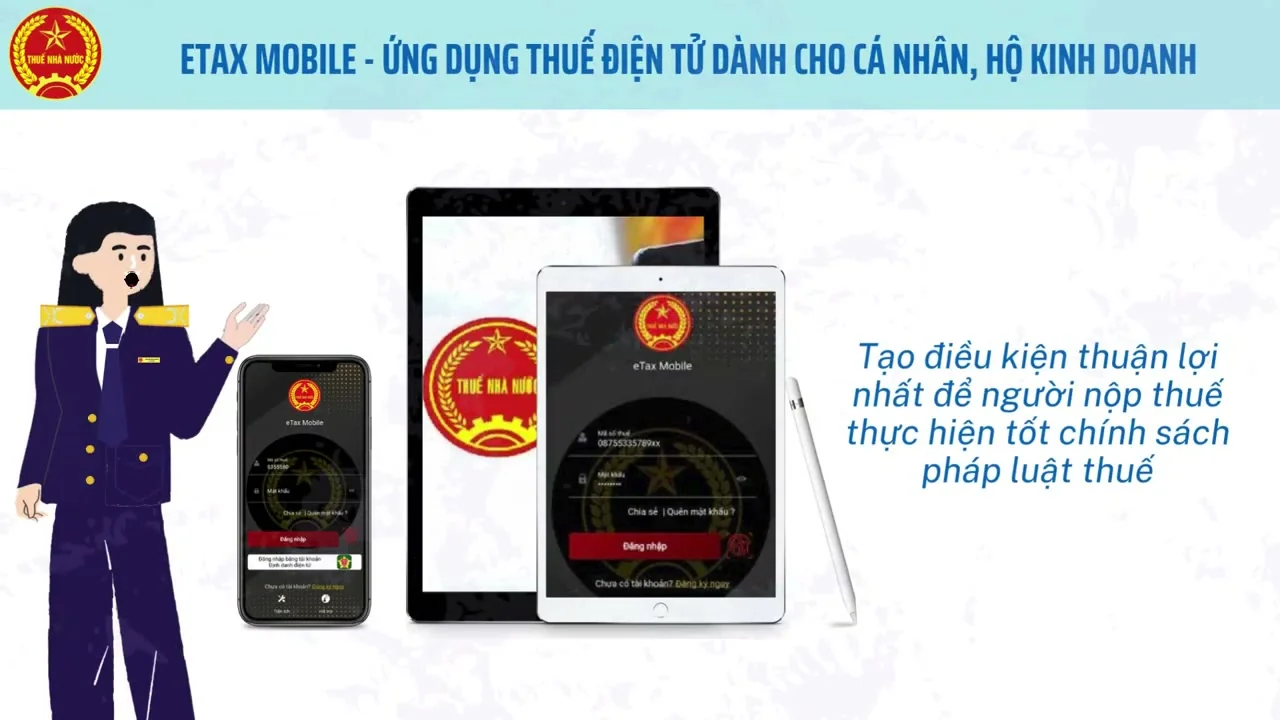
Registering Your Electronic Tax Account
- Launch the app and tap on the “Register” button located on the main welcome screen.
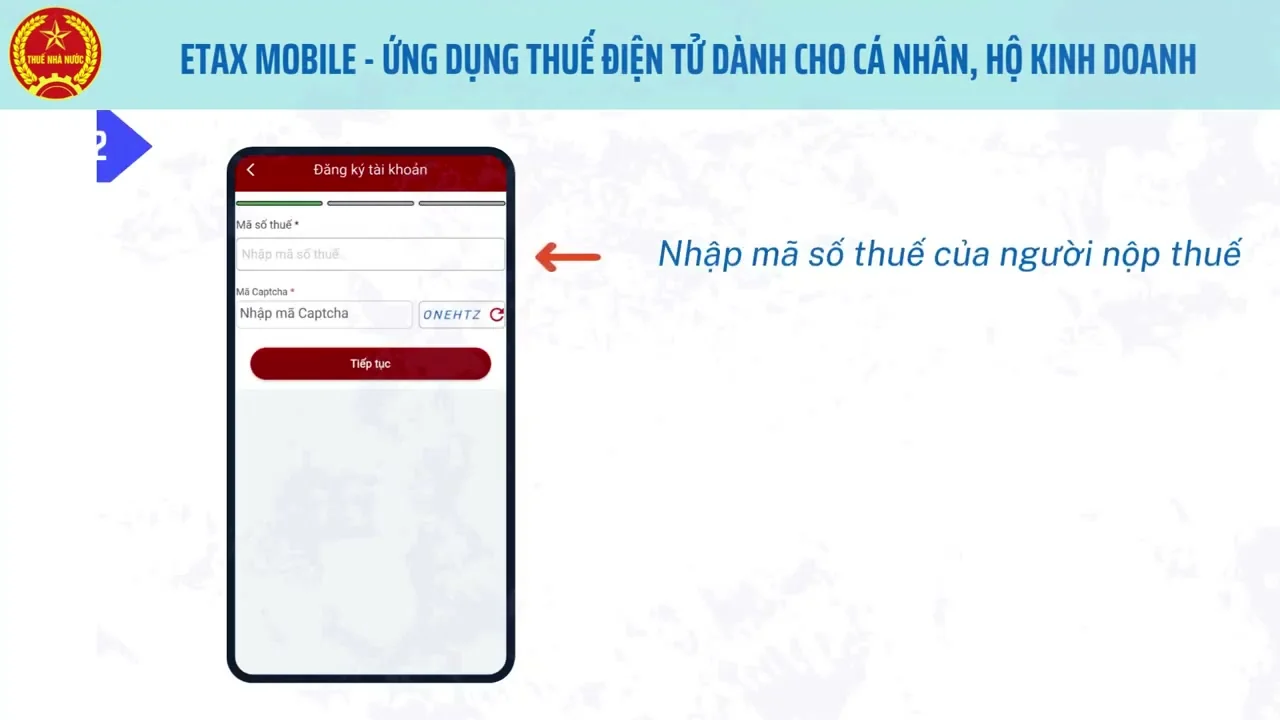
- Enter your “Tax Identification Number (TIN)” and other required personal details as prompted by the system.
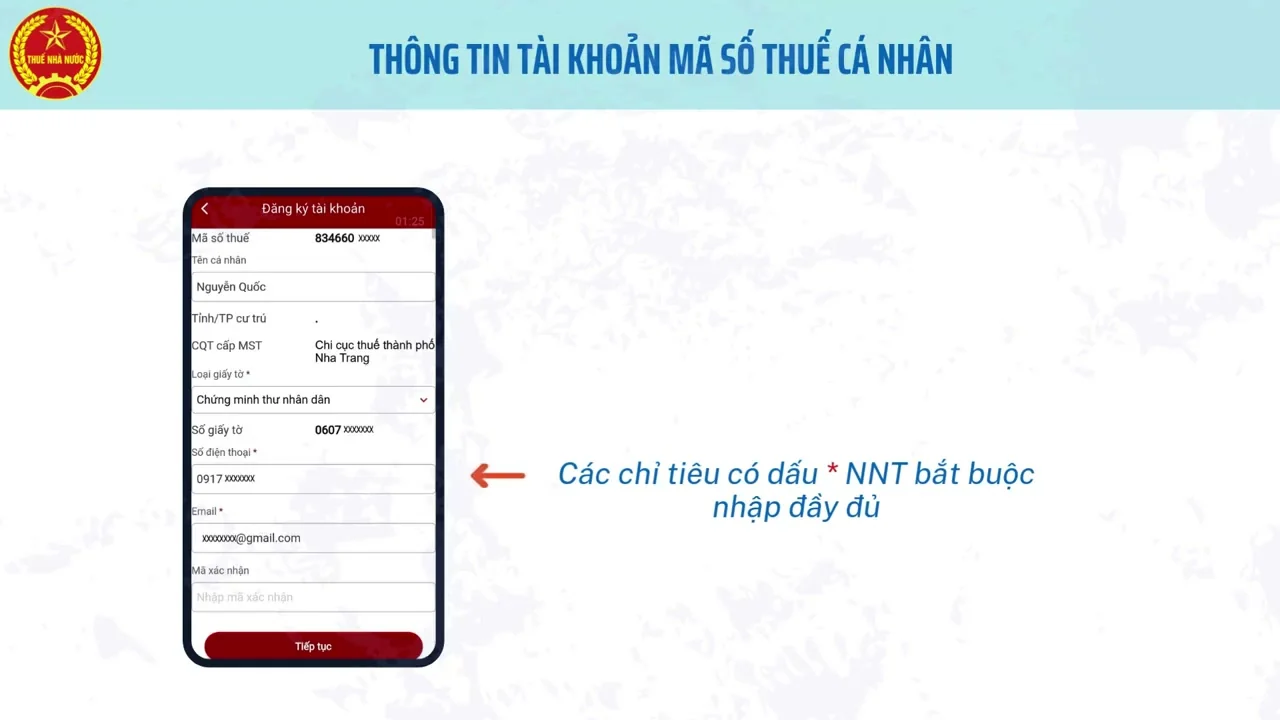
- You will need to provide a “Valid Phone Number” and email address to receive verification codes.
- Carefully review your information before clicking “Continue” to submit your registration request to the tax authorities.

Logging In and Security Setup
- Once your account is active, use your “TIN and Password” to log in to the application.
- For enhanced security and convenience, you can enable “Biometric Authentication” such as fingerprint or FaceID.
- Navigate to the “Account Settings” menu to manage your profile or change your password regularly.
- Always ensure you are using the “Official Version” of the app to protect your sensitive financial data from phishing attempts.
Looking Up Personal Tax Information
- From the home dashboard, select the “Tax Registration Inquiry” feature to view your data.
- This section allows you to verify your “Full Name, Address, and Managing Tax Office” records.
- If you notice any discrepancies, you can use the app to find contact information for the “Tax Department” in charge.
- This step is crucial to ensure that your “Personal Profile” matches the national tax database accurately.
Checking Your Tax Obligations
- Tap on the “Tax Obligations” icon to see a comprehensive list of taxes you need to pay.
- The app displays items such as “Personal Income Tax”, agricultural land tax, or registration fees.
- Check the “Outstanding Amount” and the specific deadline for each tax category to avoid penalties.
- You can also filter records by “Time Period” to track your past tax compliance and upcoming payments effectively.

Performing Electronic Tax Payments
- To pay, select the specific tax item and click the “Payment” button at the bottom of the screen.
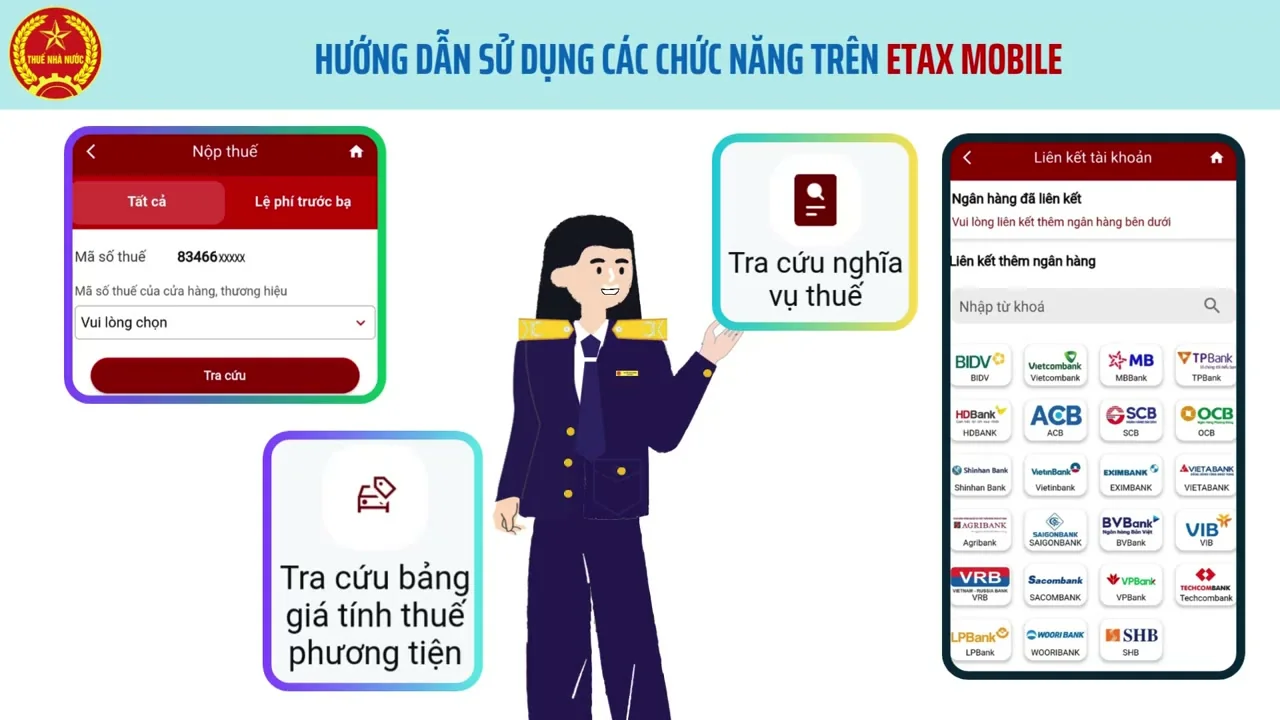
- Choose your preferred “Payment Method”, which can be a linked bank account or an e-wallet.
- Double-check the “Payment Amount” and the recipient treasury account before confirming the transaction.
- After the payment is processed, the system will issue an “Electronic Receipt” as proof of your successful transaction.
Managing Notifications and History
- Frequently visit the “Notification” tab to stay updated on new tax policies or individual notices.
- Use the “Payment History” feature to look up all previous transactions performed within the app.
- You can download and save these “Digital Documents” for your personal accounting or future reference.
- Finally, always remember to “Log Out” if you are using the app on a device that is not your primary phone.

Using eTax Mobile is the most efficient way to manage your tax duties and save time on administrative procedures. For a visual demonstration of these steps, be sure to watch the full tutorial video.